Hi.
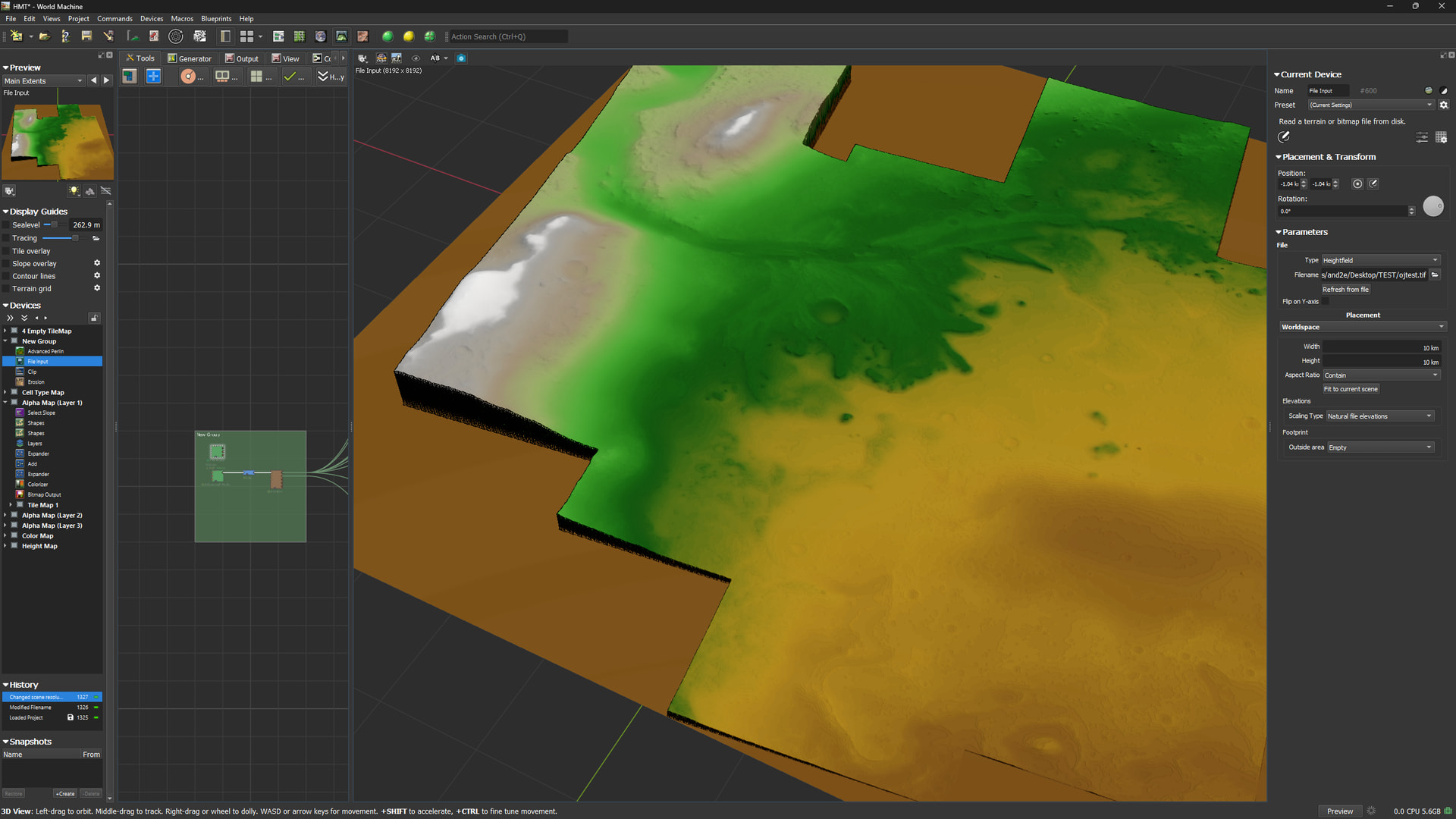
I am trying to import a GeoTIFF. It show up as black.
I look inside QGIS and it got negative value Black - 2665, White -1644
In WM project setting is it possible to set negative height.
But not inside Import Device.
How Can I go around this?
Regards
1 Like
Fastest/Easiest way, imo, would be to normalize the data in QGIS prior to bringing it to World Machine. It’s been a few years since I did anything with QGIS, so I don’t recall the exact steps, but I do remember it being fairly easy to get specific ranges for black to white.
2 Likes
Hi
Thank you for reply
I tryed diffrent software but QGIS seems to be able to show the file correctly.
I just need to keep fiddeling with QDIS to get it ridd of the minus value.
When I search web it seems to be a common problem. with diffrent solution.
I will let you know if I can find a way to solve this
Regards
1 Like
I made some progress
Now the negative value is gone.
I did it with some Pyton Raster programing.
But it still will not import it.
1 Like
I’ll take some time after work today and see if I can help, I think I still have QGIS installed. I also seem to recall some issues I was having specifically with QGIS and GeoTIFFs, so I’ll see if I left notes anywhere.
2 Likes
Okay, so the good news is that you likely don’t even have to normalize the GeoTIFF. On my end, just exporting it from QGIS works where the file as downloaded did not.
Steps to reproduce:
In QGIS 3.40.14-Bratislava:
- Layer → Add Layer → Add Raster Layer
- Select your file in the dialog box, click add, close out of the box
- In the Layers panel, right click the layer, select Export → Save As
- In the dialog box that pops up, at the very top, select
Rendered image for the Output mode (this is a crucial step, the raw data is likely the reason it’s not displaying correctly in WM)
- Select where to save the exported file
- All other options can be left at defaults
- Optionally deselect the “Add saved file to map” option
- Press OK
The resulting exported file (which, on my machine, took just under a minute to save out, and resulted in a 1.71GB file) should load into World Machine. No fiddling around with the ranges required.
I can dive deeper if more details are needed (QGIS is something I got very familiar with during my Hyrule Shaded Relief Map project, since the heightmap I could find was very low res, and QGIS offered a path to significantly increasing the resolution without introducing artifacting), but if your primary goal is just to get the output working, this should cover you!
2 Likes

That looks AMAZING.
I was not even close.
Thank you so much. This will make it much easier to move forward. This will probably also work for DEM files. Time will tell..
Hyrule looks FABILUS.
“In the dialog box that pops up, at the very top, select Rendered image for the Output mode (this is a crucial step, the raw data is likely the reason it’s not displaying correctly in WM)”
Right on the MONEY. GLORIUS!
I just neede to drag and drop it into QGIS and then export it as Rendered image.
I never notice that little “option”
2 Likes
Glad I could help! At some point, I’ll probably look into the methods I used for smoothing out the date without distorting it, see if I can help get rid of some of that banding.
1 Like
Banding may come from source (not sure) . It is 5m/pix resolution.
Banding can also be QGIS that makes it.
If you have Photoshop you can use exposure and find out.
1 Like
Oh, you can zoom in on QGIS and see that banding is present in the original data. Not super uncommon. I haven’t had a chance to test it myself yet, but if I remember correctly, if you extract the contours from the original data (you’ll want to play around with this, you want the contour distance to be small enough that you don’t lose any features, but not so fine that it preserves the banding, so ideally you’ll want the distance to be just slightly larger that the largest height difference between any two pixels) then run interpolation on those contours, it’ll produce a raster image without the banding (or with less banding, depending on your export settings). I believe the interpolation mode you want is line Line Density, but I’m not 100% on that. The workflow is similar for increasing the resolution of a heightmap while preserving details, though in that case, you’ll really want to focus on contour distance, and maybe even a little contour smoothing.
1 Like